
Supplies
Font of Choice - I used Adria DB and Santa’s Sleigh here
Weescotlass mask 241 here
Eyecandy 5: Nature - Fire and Snow
Animation Shop
“Holiday Wishes” is a PTU tagger size scrap kit created by Jessica of Gothic Inspirations and can be purchased from her store Gothic Inspirations. You can visit her blog here.
Thank you Jessica - the possibilities with this kit are endless!
This tutorial was written assuming you have a working knowledge of PSP.
~♥~ Let’s get started ~♥~
Open up a 700 x 700 blank canvas.
Flood fill white.
First we’re going to create the scenery that you see in the window.
Select All.
Copy and paste Paper 17 Into Selection.
Deselect.
Copy and paste Tree Pine as a new layer.
Resize 70% - Position at the left side of your canvas.
Copy and paste Santa 2 as a new layer.
Resize 50%/Mirror - position beside the tree.
Copy and paste Christmas Ball, Christmas Ball 2, and Candy Cane all as new layers.
Resize them as small as you like and decorate the tree - you only need to decorate the right side as that’s all you’ll see in the window.
Copy and paste Tab Snowman as a new layer.
Resize 30%/Duplciate/Mirror
Move them into position as if they’re pictures on the wall.
Go ahead and use your imagination and decorate this scenery up really festive…like it’s really Santa’s house!
Once you’ve done that then minimize or move off to the side for now.
Create a new 700 x 700 blank canvas.
Flood fill white.
Copy and paste WindowWSnow 2 as a new layer.
Resize 80%
Make you other canvas (Santa’s room that you created) active.
Copy Merge.
Make the new canvas with the window active.
Paste the scenery below the frame.
Resize 70%
Highlight the window layer.
Click anywhere outside of it with your Magic Wand.
Highlight your scenery layer.
Tap the delete key.
Deselect.
Copy and paste Candles ABOVE the window.
Resize 30%
Move it into position - centered on the sill.
Move this layer below the window layer.
Copy and paste Pine Garland as a new layer.
Resize 60%
Center that at the bottom of the window.
Copy and paste Bow as a new layer.
Resize 25%
Place it on the window.
Copy and paste Reindeer 1 & 2 as new layers.
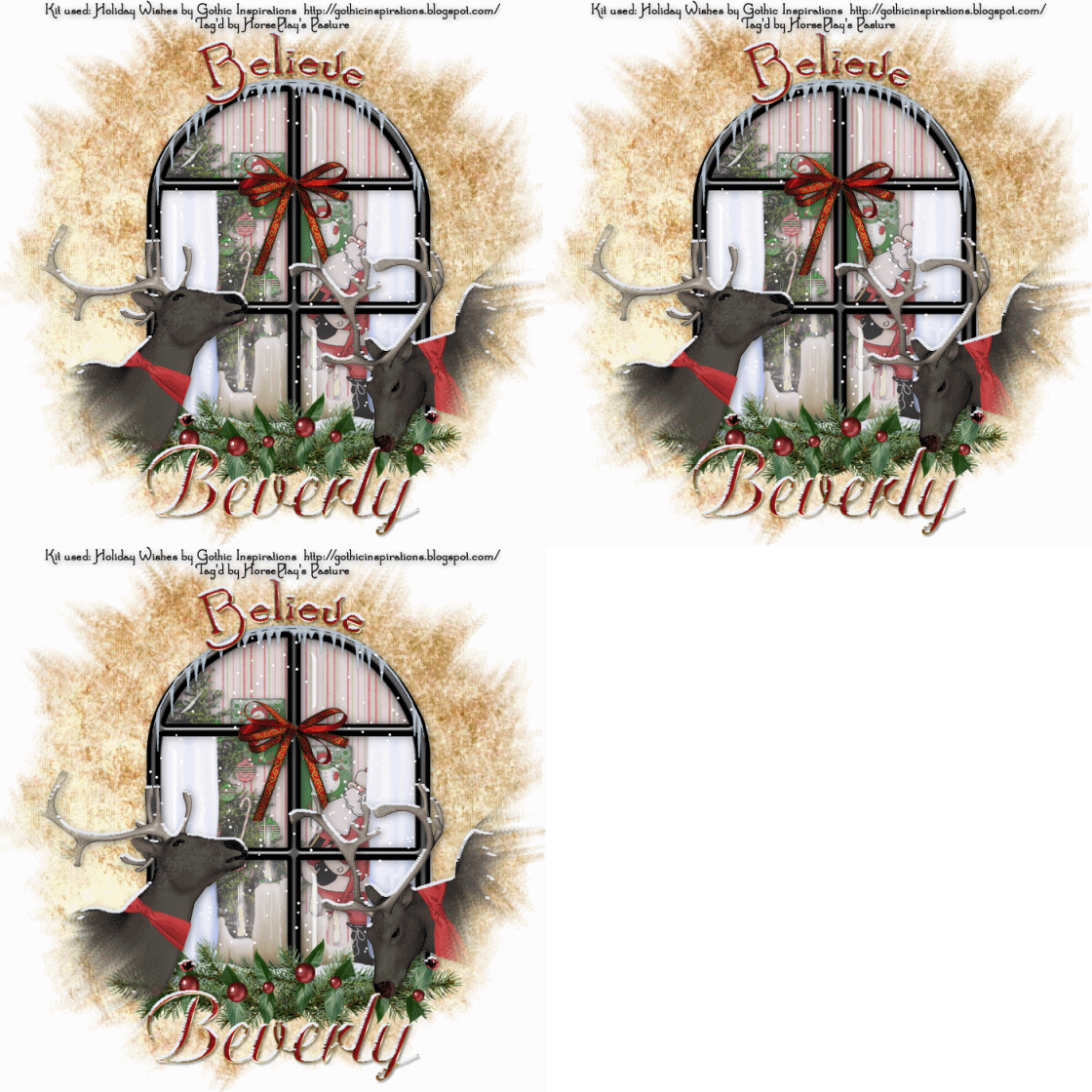
Move each into position - see my tag for reference.
Once you have them positioned Merge Visible.
Apply the mask.
Merge Group.
Highlight your white background.
Select All.
Copy and paste Paper 18 Into Selection.
Deselect.
Apply the mask.
Resize 110%
Merge Group.
Make your Ellipse Tool active.
In your color pallet:
Foreground: Black
Background: Null
Width: 2
Draw out a circle that will match the top of the window. If you make it slightly bigger that’s ok - just resize or use your Pick Tool.
You need to change your color pallet to colors you want to use to Type out of the word “Believe”
I used:
Foreground: Gradient set on Metal Brass
Angle: 45
Repeat: 2
Linear Style
Background: Pattern/Paper 20
Move your curser along the circle at the top center. Once you see a Rocking A click the mouse.
A Text Box will appear.
Type out the word “Believe” using the Santa’s Sleight font.
Apply.
In your layers pallet click on the plus sign.
Close out the eye on the New Ellipse layer.
Highlight the top layer/Right click/Convert to layer.
Apply Eyecandy 5: Nature - Snow Drift to the word.
Settings Tab:
Small, First Flakes
Basic Tab:
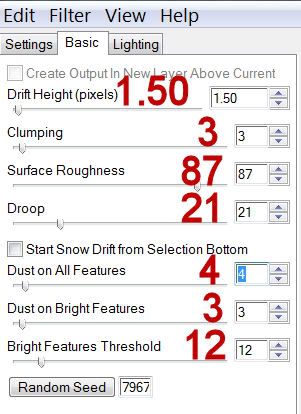
OK
Apply the same effect to the bow and reindeer as well.
Type your name out using the other font or one of your choice.
Apply the same snow effect.
Add your credits.
Add your name.
Now we’re going to get it ready to animate the candles.
Close out the window layer so you can work with them.
Highlight the candle layer.
Duplicate it twice for a total of 3 layers.
Rename them Candle 1, 2, and 3.
Highlight Candle 1.
Using your Freehand Selection Tool outline all of the flames.
Apply Eyecandy 5 Nature - Fire
Settings Tab:
Small, Candle
Basic Tab:
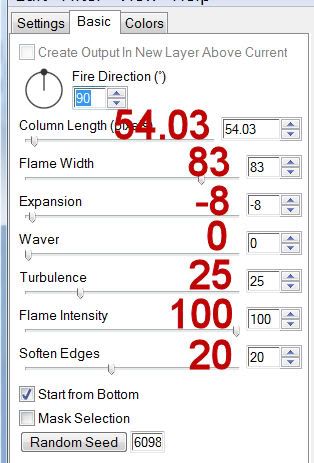
Colors Tab:
Move the tabs into about the same position as mine are. (You’re trying to keep the flame color the same as the element already is.)
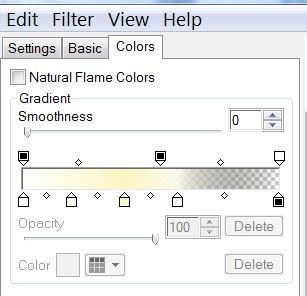
OK
Highlight Flame 2 layer.
Apply the same fire effect accept hit the random seed button once.
OK
Highlight Flame 3 layer.
Apply the same effect hitting the random seed button once.
OK
Deselect.
Close out Flame 2 and Flame 3 layers.
Copy Merge.
~Time to Animate~
Open up Animation Shop.
Edit/Paste/As New Animation
Back in PSP.
Close out Flame 1 layer.
Open up Flame 2 layer.
Copy Merge
Carry into AS
Edit/Paste/After Current Frame.
Back in PSP.
Close out Flame 2 layer.
Open up Flame 3 layer.
Copy Merge.
Back in PSP.
Edit/Paste/After Current Frame.
Shift + A to be sure all frames are highlighted.
Animation/Frame Properties
Display time: 24
OK
Animation/Resize Animation
Percentage of Original checked.
Width and Height:
80
OK
View your animation.
If you’re happy then save.
I hope you enjoyed this tutorial.
I’d love to see your results and show it off in my gallery.
Email me!
Hugs,
Bev

